Grok Bot Bookkeeping Plugin: How to Give Your Bot the Books, Step by Step
Yes, there is a bookkeeping plugin for Grok Bot. Switchbooks is listed in the Grok Bot marketplace, and once it is installed your Bot is working in a real set of books rather than reasoning about a spreadsheet. It can post bank transactions, match transfers, book journal entries, reconcile accounts, and run your profit and loss, with your permission and with undo.
Grok Bot, which some people write as Grokbot, is xAI's persistent AI teammate: a named agent with its own cloud computer that keeps working after you close your laptop. That makes it a natural fit for bookkeeping, because bookkeeping is the job that never stops arriving. I ran a bookkeeping firm for eight years before building Switchbooks, and here is how I would set a Bot up to keep the books.
Why a Bot needs a plugin for bookkeeping
Out of the box, a Bot can reason and browse. It cannot see your bank, so it cannot post anything. Paste in a statement and it will sort rows well enough, but it is working on a copy of one account. It cannot see the credit card, so the payment from checking looks like an expense. It cannot reconcile, because there is nothing to reconcile against. The plugin gives it tools that act on a ledger and a database that holds the result, which is the difference between helping with the books and keeping them. The longer version of that argument is in Can AI do my bookkeeping?
Install the Switchbooks plugin in Grok Bot
The whole thing takes about fifteen minutes, and most of that is your bank's login screen.
- Create a Switchbooks account at switchbooks.ai if you do not have one. Ten days free, no card. You can also create it on the sign-in page in step four.
- Connect your bank and cards in the Switchbooks app. Switchbooks uses Plaid, the same connection most banking apps use. Connect every account the business uses, including each credit card, so transfers have both sides.
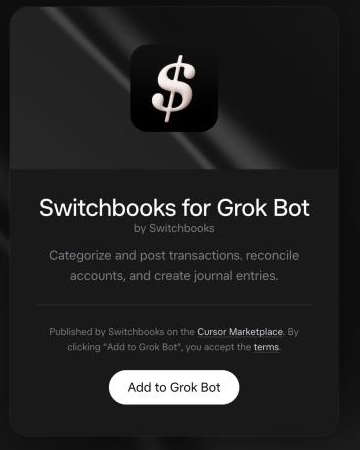
- Install the plugin. In Grok Bot, open Settings, then Plugins, then Marketplace, and search for Switchbooks. Or open Switchbooks in the Grok Bot marketplace directly and click Add to Grok Bot.
- Sign in and choose what the Bot may do. Your browser opens the Switchbooks sign-in page. You will see a box labeled Allow bookkeeping changes. Check it if the Bot may post, match, and reconcile. Leave it unchecked for a read-only connection that can answer questions and run reports but change nothing. Click Allow. The Bot never sees your Switchbooks password; the connection uses OAuth, like "Sign in with Google."
- Tell the Bot which company to use. Say "List my Switchbooks companies," then "Use [company name]." If you have one company, it is picked for you.
Set the Bot up as your bookkeeper
A Bot is built to take a job and keep going, so hand it a batch rather than a question. First, brief it the way you would brief a new bookkeeper on their first day. What the business does, how you get paid, what the main costs are, which accounts are personal, and anything you already know you want handled a certain way. "Home Depot is materials. The Friday Square charge is the contractor. The Chase card is business, the Amex is personal." It keeps those notes in the books, not in the chat, so they are still there next month.
Then give it the work, in this order.
- "Work through everything in To Review. Post what you are sure about and leave me a list of what you were not sure about, with your best guess for each."
- "Match the transfers between checking, savings, and the credit card."
- "Make rules for the vendors you saw more than three times, and show me the list."
- "Reconcile checking to the statement ending September 30 with a balance of 12,480.12. Show me what does not tie before you finish."
- "Send me last month's profit and loss and the balance sheet as of month end."
- "What did you change today?" and, if needed, "Undo the last one."
Answer the questions it comes back with. Each answer becomes something it remembers, so the pile of questions shrinks every month.
What the Bot can change, and what it cannot
Read-only: search transactions, run a profit and loss, balance sheet, cash flow, forecast, or trial balance for any dates, open the entries behind any number, list categories, payees, rules, and accounts, and read stored receipts and statements.
With changes allowed: post and split rows in To Review, match transfers, book and edit journal entries, create, rename, and merge categories and payees, make rules, reconcile from a preview, attach files, make a new company, and undo its own changes.
Never: sign in to your bank for you, move money, invite or remove people, share a report, change billing, or delete the company. Those happen in the Switchbooks app. The full list is on the AI assistants page.
Permission and undo
You choose read-only or allow changes when you connect, and you can remove the plugin at any time from Settings, then Plugins. Underneath that, Switchbooks records every change the Bot makes. Ask what changed and you get the list in plain words. Ask it to undo one and it reverses that change the same way a person would. Steps that are hard to reverse, like merging two categories, wait for your yes. How the data is protected is on the Switchbooks security page.
Grok Bot, Grok chat, and the other assistants
Switchbooks is a Grok Bot plugin, installed from the Grok Bot marketplace, so it does not show up in regular Grok chat. The same Switchbooks login also works in ChatGPT, Claude, and Cursor, so a team can use whichever assistant each person prefers and the books are the same. If you run several companies, or you keep books for clients, one login covers all of them and every answer is tagged with the company it came from.
What it costs
Nothing extra for the plugin. Switchbooks is $25 per month per company, every feature included, with a free ten-day trial and no card to start.
Read more
- 10 best Grok Bot plugins for small business on the Switchbooks blog.
- Best Grok Bot plugins for small business, my shorter list on this site.
- Which AI agents, plugins, and connectors actually do the books, with a six-question test to run on any of them.
- The connect tutorial, with every assistant on one page.
- Every way to connect an assistant to Switchbooks
Common questions
Is there a bookkeeping plugin for Grok Bot?
Yes. Switchbooks is listed in the Grok Bot marketplace. In Grok Bot, open Settings, then Plugins, then Marketplace, search for Switchbooks, install it, and sign in to Switchbooks in your browser. Your Bot can then read your books, run reports, post transactions, match transfers, book journal entries, and reconcile.
How do I install the Switchbooks plugin in Grok Bot?
Open Settings, then Plugins, then Marketplace inside Grok Bot and search for Switchbooks, or open the listing at x.ai/bot/plugin/71396845. Install it, sign in to Switchbooks or create an account in the browser window that opens, choose whether the Bot may make changes, and allow access. Then tell the Bot which company to use.
Can a Grok Bot reconcile my accounts?
With Allow bookkeeping changes checked when you connect, yes. Give it the statement ending date and balance and it compares the books to the statement, shows a preview of what matches and what does not, and finishes the reconciliation when you say yes. A finished reconciliation can be undone.
Is it safe to give a Bot access to my books?
The connection uses OAuth, so the Bot never sees your Switchbooks password or your bank login. You choose read-only or allow changes when you connect, every change is recorded in Switchbooks, most can be undone from the chat, and you can remove the plugin from Settings, then Plugins, at any time.
Does the Switchbooks plugin work in regular Grok chat?
It is a Grok Bot plugin, installed from the Grok Bot marketplace, so it does not appear in regular Grok chat. The same Switchbooks login also works in ChatGPT, Claude, and Cursor, with the same books.
Does the plugin cost extra?
No. The plugin is free to install and the connection is included with Switchbooks, which is $25 per month per company with a free ten-day trial.
More guides on this site
- Can AI do my bookkeeping?
- ChatGPT bookkeeping plugin: how to use ChatGPT for bookkeeping
- Claude bookkeeping connector: how to use Claude for bookkeeping
- Best ChatGPT plugins for small business
- Best Claude connectors for small business
- Best Grok Bot plugins for small business
- What is Switchbooks?
- What is Ledge Accounting?