Best Grok Bot Plugins for Small Business Owners (2026): A Simple Guide
Grok Bot, which some people write as Grokbot, is xAI's persistent AI teammate. You give a Bot a name and a job, and it keeps working after you close your laptop. On its own, a Bot can think and browse. Plugins are what let it reach into the tools your business actually runs on: your inbox, your calendar, your books.
I spent eight years running a bookkeeping firm before I built Switchbooks, so this is a short, practical list rather than a tour of the whole marketplace. These are the Grok Bot plugins I would hand to a small business owner first, with the install steps and a walkthrough of giving your Bot the books.
Is there a bookkeeping plugin for Grok Bot?
Yes. Switchbooks is listed in the Grok Bot marketplace as a bookkeeping plugin, and it is the first entry below. Install it and your Bot can read your books, run reports, and, with your permission, post transactions, match transfers, and reconcile accounts. The step-by-step guide is Grok Bot bookkeeping plugin: how to give your Bot the books.
How to install a Grok Bot plugin
Every plugin installs the same way, and it takes about a minute.
- In Grok Bot, open Settings, then Plugins, then Marketplace.
- Search for the plugin by name and install it.
- Your browser opens so you can sign in to the service. Review what the connection may do, then allow it.
That is it. Your Bot can use the plugin from the next message on. If a plugin is for a paid service, you need an account with that service, but the plugins themselves are free.
1. Switchbooks: the books
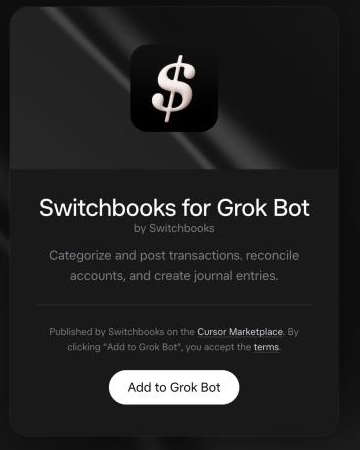
This one is mine, so I will say so plainly. Switchbooks is bookkeeping software you talk to. With the plugin installed, your Bot can read your books and, if you allow it, keep them. It categorizes and posts bank transactions, matches the transfers between your accounts so nothing is counted twice, books journal entries, and reconciles an account to its statement from a preview. Ask for last month's profit and loss and it comes back in the chat.
Every change a Bot makes is written down in Switchbooks, and most changes can be undone from the same chat. It cannot sign in to your bank, move money, invite or remove people, share a report, or change billing. Those stay with you in the app.
Things to say:
- "What is sitting in To Review?"
- "Post everything in To Review that matches a rule, and list what you were unsure about."
- "Show me September's profit and loss."
- "How much have we paid Gusto this year?"
The listing is Switchbooks in the Grok Bot marketplace. The full setup is further down this page.
2. Gmail: the inbox
With Gmail connected, your Bot can search your mail, summarize a long thread, and draft replies for you to send. The win for an owner is the first pass. "Find every customer email from this week that nobody answered, and draft a reply to each" is a real morning saved.
3. Google Calendar: scheduling
The Bot reads your availability, offers times, and creates the event. With Gmail connected as well, it can read "can we meet Thursday?" and answer with real options instead of a guess.
4. Slack: the team
If your team lives in channels, Slack gives the Bot the conversation as context. It can catch you up on a channel you muted, find the decision buried in a thread, and post an update where people will actually see it.
5. Notion: how the business works
Your procedures, meeting notes, and running documents. With Notion connected, the Bot answers from how your business actually operates rather than from the open web. "What is our refund policy?" gets your policy, not a generic one.
6. HubSpot: the pipeline
If you have a real sales pipeline, HubSpot gives the Bot your contacts and deals. It can tell you which deals have gone quiet, write a one-page brief before a call, and log the notes after.
Giving your Bot the books, step by step
Here is the whole setup for Switchbooks. It takes about fifteen minutes, and most of that is your bank's login screen.
- Create a Switchbooks account. Go to switchbooks.ai and sign up. The first ten days are free and no card is needed.
- Connect your bank and cards. Switchbooks uses Plaid, the same connection most banking apps use. Connect every account the business uses, including each credit card. Transfers only match when both sides are there.
- Install the plugin. In Grok Bot, open Settings, then Plugins, then Marketplace, and search for Switchbooks. Install it and sign in to Switchbooks in your browser when it asks.
- Choose what the Bot may do. On the Switchbooks sign-in page you will see a box labeled Allow bookkeeping changes. Check it if the Bot may post, match, and reconcile. Leave it unchecked for a read-only connection that can answer questions and run reports but change nothing. Then click Allow.
- Tell the Bot which company to use. Say "List my Switchbooks companies," then "Use [company name]." If you have one company, it is picked for you.
Then brief the Bot the way you would brief a new bookkeeper on their first day. What the business does, how you get paid, what the main costs are, which accounts are personal. Anything you already know you want handled a certain way, like "the Home Depot charges are materials." It keeps those notes in the books, not in the chat, so they are still there next month.
After that, hand over work. "Post everything in To Review you are sure about and list the rest." Answer its questions. Ask it to reconcile. Then ask for the P&L and the balance sheet, and you have your first set of real financials.
A few honest notes
Start with two plugins, not six. For most owners that is Gmail, so the Bot can see what is coming in, and Switchbooks, so it can see where the money went. Add the rest when they solve a problem you actually have.
Connect read-only first if you are unsure. Once you trust what the Bot reports, allow changes on the tools where its work is easy to review and undo. Switchbooks was built for that: every change is listed in plain words, and you can reverse it from the chat.
Switchbooks is a Grok Bot plugin, installed from the Grok Bot marketplace, so it does not show up in regular Grok chat. The same login also works in ChatGPT, Claude, and Cursor, with the same books.
Switchbooks is $25 per month per company, with every feature and every connection included, and a free ten-day trial.
Read more
- 10 best Grok Bot plugins for small business, the longer list on the Switchbooks blog.
- Which AI agents, plugins, and connectors actually do the books, with a six-question test to run on any of them.
- The connect tutorial for every assistant.
- Every way to connect an assistant to Switchbooks
- Can AI do my bookkeeping? on this site.
Common questions
What is a Grok Bot plugin?
A plugin gives your Bot access to an outside tool, such as your inbox, your calendar, or your books. You install plugins from Settings, then Plugins, then Marketplace inside Grok Bot, and sign in to the service in your browser when asked.
Do Grok Bot plugins cost extra?
The plugins are free to install. A plugin for a paid service needs an account with that service. Switchbooks is $25 per month per company with a free ten-day trial.
Can a Grok Bot do my bookkeeping?
With the Switchbooks plugin, yes. A Bot can read your books, run reports, and, if you allow it, categorize and post transactions, match transfers, book journal entries, and reconcile accounts. Bank sign-in and billing stay in the Switchbooks app.
Is it safe to give a Bot my books?
You choose read-only or allow changes when you connect. Every change is recorded in Switchbooks and most can be undone from the chat. No connection can sign in to your bank, move money, invite or remove people, or change billing.
Does the Switchbooks plugin work in regular Grok chat?
It is a Grok Bot plugin, installed from the Grok Bot marketplace. The same Switchbooks login also works in ChatGPT, Claude, and Cursor, with the same books.
More guides on this site
- Can AI do my bookkeeping?
- ChatGPT bookkeeping plugin: how to use ChatGPT for bookkeeping
- Claude bookkeeping connector: how to use Claude for bookkeeping
- Grok Bot bookkeeping plugin: how to give your Bot the books
- Best ChatGPT plugins for small business
- Best Claude connectors for small business
- What is Switchbooks?
- What is Ledge Accounting?